 Support Knowledgebase
Getting a Refund for Google Ads
Google is obligated to provide refunds for clicks that originated from bots or are fraud/spam.
While it’s known that Google identifies “invalid clicks” – it definitely will not include are fraud clicks, and Google Ads utilizes a minimal classification engine.
The following article will tell you step-by-step how to export your “bad IP” files for a given date and then apply for a refund.
- Log into button ^ solutions (https://dashboard.button.solutions/login)
- Select your domain to select the correct site/dashboard, and then click “Ad Campaigns” and select “Google”

3- Next Select the Date range or pre-set time ranges, allow the app to load, and then click the blue “Export Bad IPs” button on the top right of the screen. The system will begin compiling an excel/csv file for you to submit. ** ****Note that the longer this date range is, the longer this file will take to compile. Please be patient.**

4- You will be prompted to download the file immediately after the file is finished compiling. Save it. You will notice there’s a lot of info, but noteworthy is column J, which describes the “Access Details” and within the values you will see “,”{“strong_signals”:" which will explain the specific reason or classification. Also column B will tell a 1-one word reason why the IP address was classified as fraud.

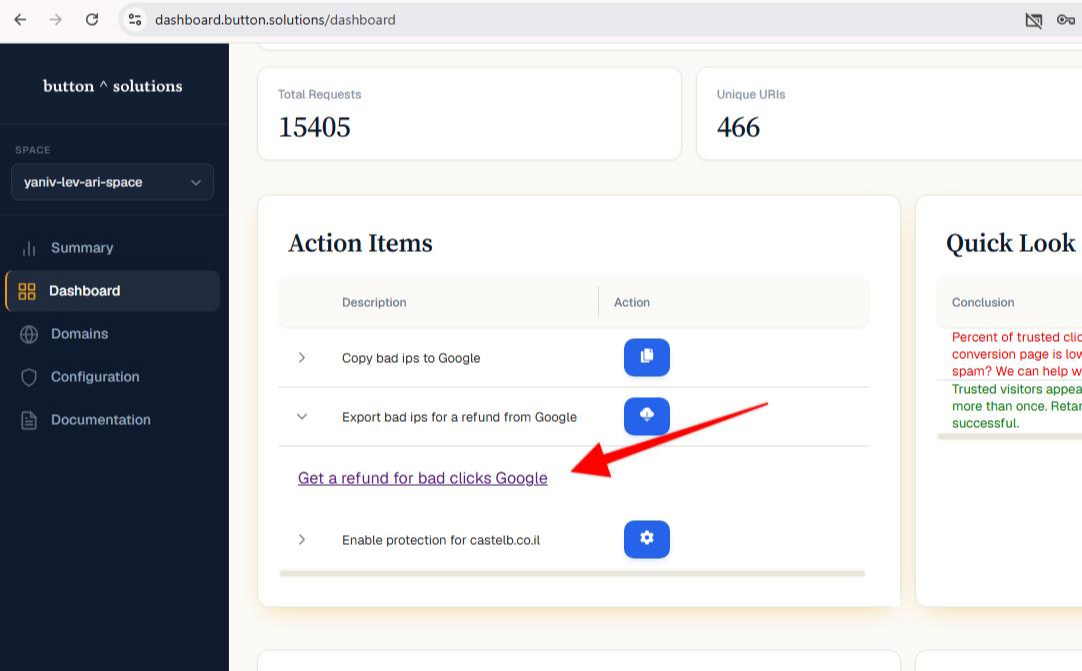
5- Next we need to apply for a refund from Google. You can either go here: https://support.google.com/google-ads/contact/click_quality or click the “Get a refund for bad click Google” link under “Action Items”
6- Enter, your name, company, email, login id, and select your Google account.

7- Next you need to take a screenshot of your account dashboard which shows the URL, data range, page URL. ALT+PRNT SCRN can be used to take a full desktop screenshot. Paste it into a graphics utility and save it.
8- Select “Suspicious Activity from IP sources” for the question “What is the issue type*?”
9- Select “Clicks from Excluded IPs” as the “What is the issue?”
10- For “Date when suspicious activity began*” list the initial date range of your file.
11- For the end date, list the end date of the file.
12- Select “Search Network” (or alternatively display network if relevant).
13- (Not required) Select your campaigns.
14- (Not required) Select your ad groups if relevant.
15- (Not required) You do not need to list keywords in most cases.
16- Select “Traffic Quality: Invalid clicks & refunds” for the question: “**Please choose the option that best describes your request ***”

17- For the following question: Did you recently opt in to the Google Display or Search Networks? *
Select “No”
18- Answer the following question: **Were any of your ads approved in the past month? *** Likely No.
19- “Did you recently increase your budget or bids?”
Answer: No
20- “Have you checked for invalid clicks in your account?”
Answer: Yes
21-** **For this question: *“Summary of the issue ”
You can use the following template: “We use various 3rd party tools and tracking that tracks the IP addresses, identifies their device and version information, classifies the visitor and tracks each session/engagement. We have found the following IPs in the file attached to be positively identified as click fraud, including click fraud abuse, and the remaining IPs to originate from untrusted or invalid IP sources such as IP proxies or ISP/static/data center IPs. Further engagements from these IPs have shown unnatural behavior and abuse. Our provided log displays each IP and further information, including the number of different devices and unique clicks from each IP, as well as “strong signals” information which positively identifies a bot and its rationale.”
21- For the following question: “IP addresses (if any)”
Answer: “see file attached”
22- You can leave this empty: “Suspicious sites (if any)”
23- For the following question: “Please attach a copy of your web logs or other tracking data that shows the data in question”
****You should upload your excel file that you exported from button ^ solutions earlier. ****
24-** **How would you like a Google expert to respond? *
Select Email*
25- Email CC
Add any other additional emails to the case.
Submit the Case.
If you need any assistance, please contact our support page for more information.
Note: That we are working on a tool that auto-populates most of these fields to make it easier.